Struggling with low FPS and performance issues in Counter-Strike 2? This comprehensive optimization guide will help you maximize your frame rate, reduce input lag, and achieve buttery-smooth gameplay on any system. Whether you're running a high-end gaming rig or a budget setup, these proven techniques will unlock your PC's full potential and give you the competitive edge you need.
Proper optimization can increase your FPS by 50-200% depending on your hardware. Even small improvements in frame rate can drastically improve your aim and reaction time.
Table of ContentsLink to this section
- Why FPS Matters in Counter-Strike 2
- Quick Performance Test
- In-Game Graphics Settings
- Advanced Video Settings Explained
- Console Commands for Performance
- NVIDIA Control Panel Optimization
- AMD Radeon Settings Optimization
- Windows Optimization
- Launch Options Guide
- Network and Ping Optimization
- Config File Tweaks
- Hardware Bottleneck Identification
- Low-End PC Specific Tips
- High-End PC Maximization
- Troubleshooting Common Issues
- Monitoring Your Performance
- Closing Notes
Why FPS Matters in Counter-Strike 2Link to this section
Frame rate directly impacts your competitive performance in CS2. Higher FPS means smoother visuals, reduced input lag, and faster response times. Professional players typically aim for 300+ FPS even on 144Hz or 240Hz monitors because the game engine processes inputs more frequently at higher frame rates.
Key benefits of high FPS:
- Lower input lag: Each frame represents a new input sample, reducing the delay between your action and on-screen response
- Smoother animations: Movement, peeking, and spray control feel more fluid and predictable
- Better target tracking: High refresh rate monitors paired with high FPS make tracking moving enemies significantly easier
- Competitive advantage: Studies show players with 144+ FPS have measurably faster reaction times than those at 60 FPS
Even if you have a 60Hz monitor, running the game at 200+ FPS will still reduce input lag and make the game feel more responsive.
Quick Performance TestLink to this section
Before making any changes, establish your baseline performance. This helps you measure the impact of each optimization step and identify what works best for your system.
How to Test Your Current FPSLink to this section
- Open the developer console by pressing ~
- Type
cl_showfps 1to display your current frame rate - Join an offline match by typing
map de_mirage - Note your FPS in different scenarios:
- Standing still in spawn (highest FPS)
- Looking at mid with smoke grenades active (lowest FPS)
- During intense firefights with multiple players
Your FPS will vary significantly based on what's happening in-game. Always test in realistic scenarios, not just standing in spawn.
Understanding Your ResultsLink to this section
- 300+ FPS: Excellent performance, focus on consistency
- 144-300 FPS: Good performance, minor optimizations recommended
- 60-144 FPS: Playable but needs optimization for competitive play
- Below 60 FPS: Major optimization required, consider hardware upgrades
In-Game Graphics SettingsLink to this section
The in-game video settings have the largest immediate impact on performance. CS2 is well-optimized, but certain settings can tank your FPS if configured incorrectly.
Recommended Settings for Maximum FPSLink to this section
Navigate to Settings → Video → Advanced Video and apply these settings:
| Setting | Recommended Value | Impact |
|---|---|---|
| Aspect Ratio | Native (16:9) | None |
| Resolution | Native or 1280x960 | Very High |
| Display Mode | Fullscreen | Medium |
| Refresh Rate | Maximum Available | None |
| NVIDIA Reflex Low Latency | Enabled + Boost | Medium (reduces latency) |
Advanced Video SettingsLink to this section
| Setting | Low-End PC | Mid-Range PC | High-End PC |
|---|---|---|---|
| Global Shadow Quality | Low | Medium | High |
| Model/Texture Detail | Low | Medium | High |
| Texture Filtering | Bilinear | Trilinear | Anisotropic 16x |
| Shader Detail | Low | Medium | High |
| Particle Detail | Low | Medium | High |
| Ambient Occlusion | Disabled | Medium | High |
| High Dynamic Range | Performance | Quality | Quality |
| Anti-Aliasing | None or 2x MSAA | 4x MSAA | 8x MSAA |
| NVIDIA DLSS | Quality | Quality | Quality (if available) |
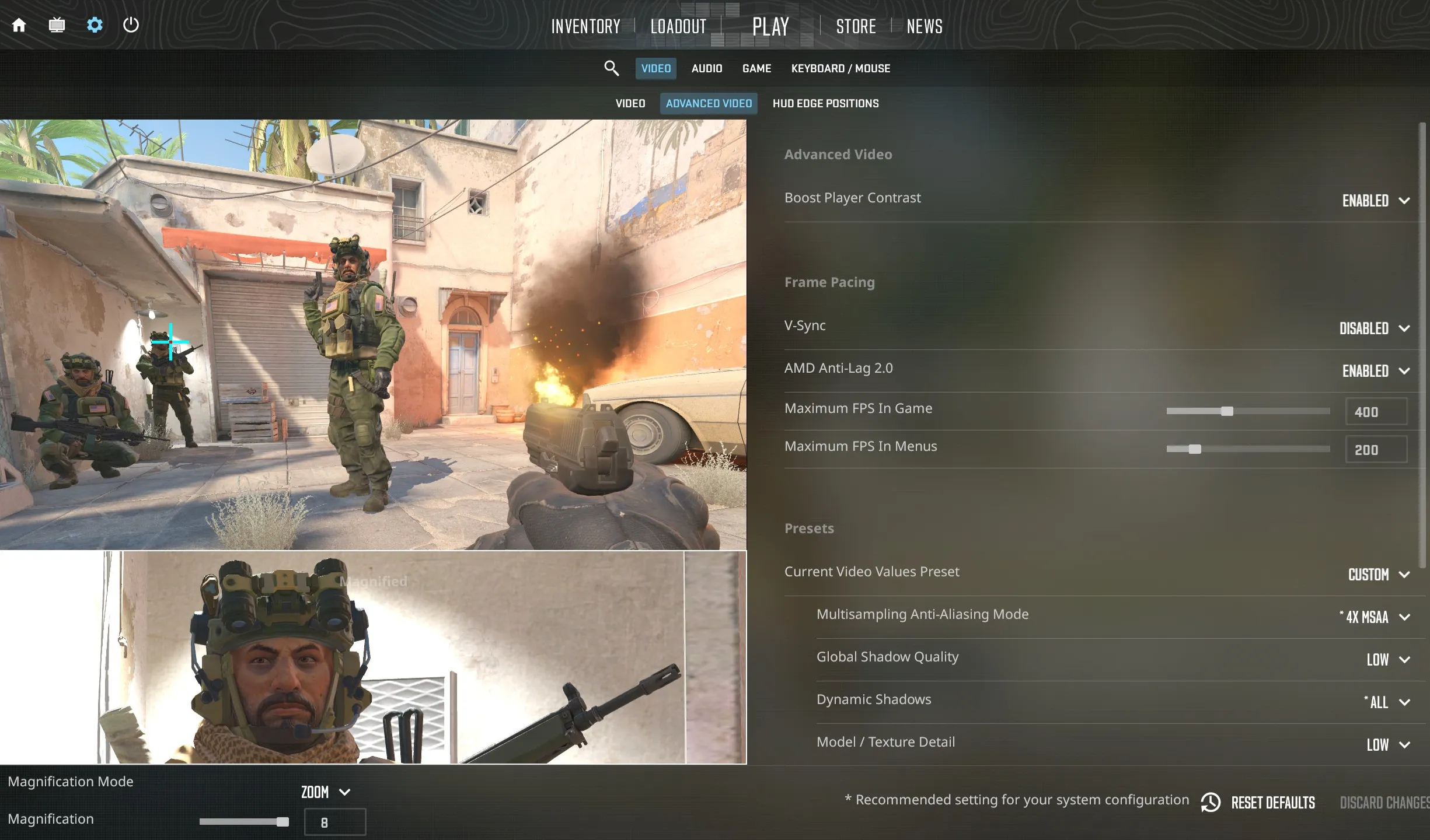
Start with all settings on Low, then gradually increase individual settings while monitoring FPS to find your perfect balance.
Advanced Video Settings ExplainedLink to this section
Understanding what each setting does helps you make informed decisions about performance vs. visual quality.
Global Shadow QualityLink to this section
Shadows are one of the most performance-intensive settings in CS2. This controls the resolution and complexity of shadows cast by players, weapons, and objects.
- Low: Blocky shadows, highest FPS gain (40-60% improvement)
- Medium: Balanced shadows, moderate performance impact
- High/Very High: Sharp, realistic shadows, significant FPS cost
Recommendation: Use Low for competitive play. Shadows don't provide tactical advantages in CS2.
Model/Texture DetailLink to this section
Controls the quality of player models, weapon skins, and environmental textures.
- Low: Simplified models, faster loading, 20-30% FPS improvement
- Medium: Good balance for most systems
- High: Full detail models, minimal FPS impact on modern GPUs
Recommendation: Medium or High. Texture quality has minimal FPS impact on GPUs with 4GB+ VRAM.
Anti-Aliasing (MSAA)Link to this section
Smooths jagged edges on objects but is extremely demanding on performance.
- None: Jagged edges, maximum FPS (50-100% improvement)
- 2x MSAA: Light smoothing, moderate performance cost
- 4x/8x MSAA: Very smooth, major FPS reduction
Recommendation: Use NVIDIA DLSS instead if available, otherwise 2x MSAA or None.
NVIDIA DLSS / FSRLink to this section
AI-powered upscaling technology that renders the game at lower resolution and upscales it intelligently.
- Quality Mode: Slight FPS boost (20-30%), minimal visual degradation
- Balanced: Moderate FPS boost (30-50%)
- Performance: Maximum FPS boost (50-80%), noticeable quality loss
Recommendation: Enable DLSS Quality mode if you have an RTX 2060 or newer.
DLSS is a game-changer for RTX GPU owners. It can double your FPS while maintaining excellent image quality.
Console Commands for PerformanceLink to this section
Console commands allow fine-tuned control beyond what's available in the settings menu. These commands persist across sessions when added to your autoexec file. For a complete list of performance-boosting commands, check our FPS Boost Commands page.
Essential Performance CommandsLink to this section
Open console (~) and enter these commands:
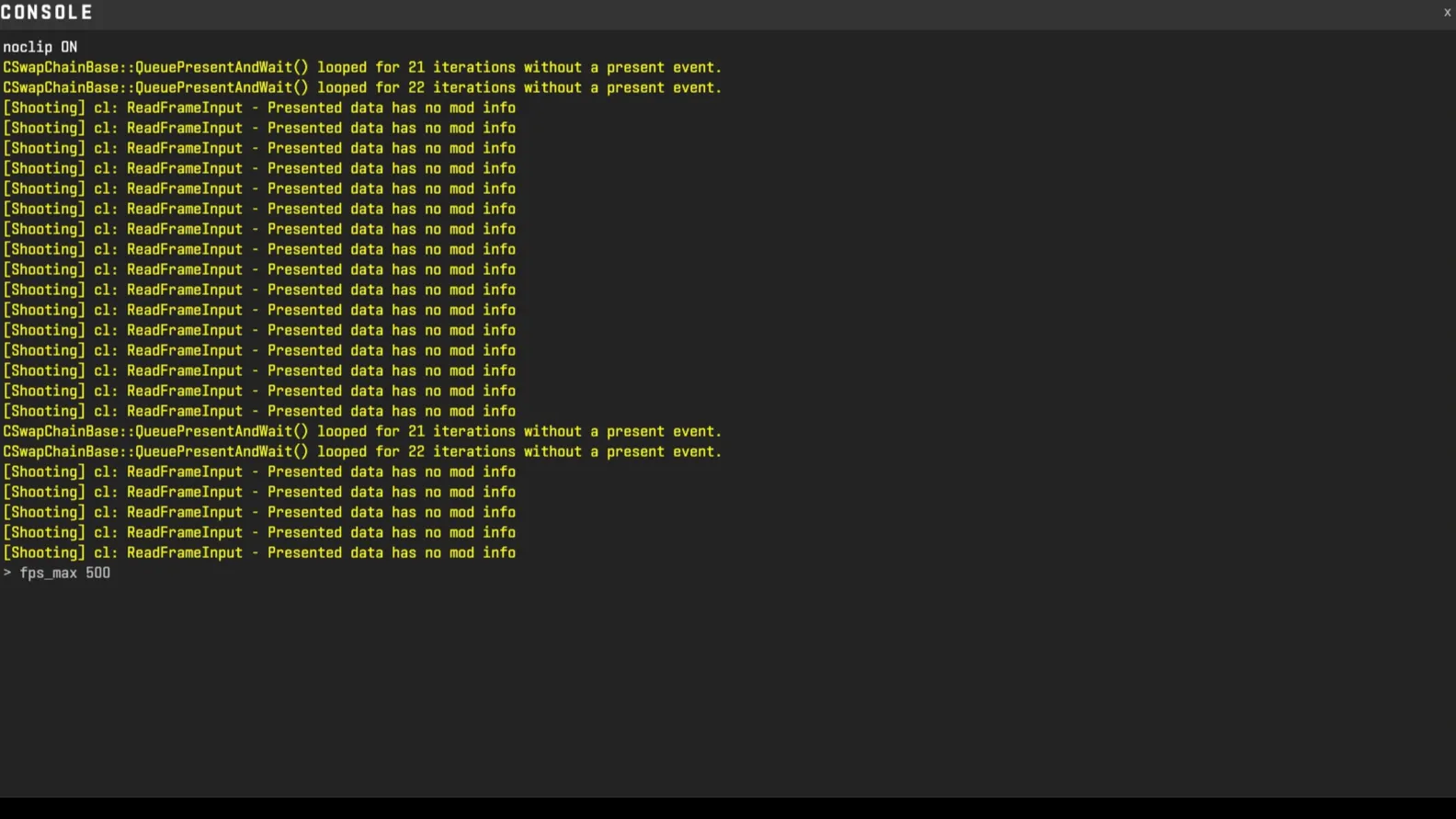
fps_max 0 – Uncaps frame rate (use fps_max 300 if you experience issues)
r_drawtracers_firstperson 0 – Disables bullet tracers for slight FPS gain
mat_queue_mode 2 – Forces multi-threaded rendering (huge FPS boost on CPUs with 4+ cores)
cl_forcepreload 1 – Preloads map assets to reduce stuttering
r_dynamic 0 – Disables dynamic lighting for FPS improvement
cl_disable_ragdolls 1 – Removes ragdoll physics after death
func_break_max_pieces 0 – Reduces debris from broken objects
Some performance commands may be locked in official matchmaking. Test them in offline mode first.
Display and Monitoring CommandsLink to this section
Track your performance in real-time with these commands. For a complete list of useful commands, visit our Console Commands database.
cl_showfps 1 – Shows current FPS (1-4 for different detail levels)
net_graph 1 – Displays FPS, ping, packet loss, and choke
+cl_show_team_equipment – Shows teammate utility (won't affect FPS but useful)
Graphics Quality CommandsLink to this section
Fine-tune visual settings beyond the menu options:
r_shadows 0 – Disables all shadows (not recommended, breaks competitive integrity)
mat_disable_bloom 1 – Removes bloom effects
r_3dsky 0 – Disables 3D skyboxes for minor FPS gain
NVIDIA Control Panel OptimizationLink to this section
NVIDIA GPU users can configure driver-level settings that significantly impact CS2 performance. These settings override in-game options in some cases.
How to Access NVIDIA Control PanelLink to this section
Before optimizing, ensure you have the latest NVIDIA GeForce drivers installed for best CS2 performance.
- Right-click on your desktop
- Select NVIDIA Control Panel
- Navigate to Manage 3D Settings
- Click the Program Settings tab
- Select Counter-Strike 2 from the dropdown (or add it manually)
Optimal NVIDIA Settings for CS2Link to this section
| Setting | Recommended Value | Why |
|---|---|---|
| Power Management Mode | Prefer Maximum Performance | Prevents GPU downclocking |
| Texture Filtering - Quality | Performance | Prioritizes FPS over texture quality |
| Threaded Optimization | On | Utilizes multiple CPU cores |
| Maximum Pre-Rendered Frames | 1 | Reduces input lag significantly |
| Low Latency Mode | Ultra (if supported) | Minimizes input delay |
| Vertical Sync | Off | Eliminates FPS cap and input lag |
| Triple Buffering | Off | Only works with VSync enabled |
| Anisotropic Filtering | Application-controlled | Let the game decide |
| Antialiasing - Mode | Application-controlled | Let the game handle it |
| CUDA - GPUs | All | Use all available GPUs |
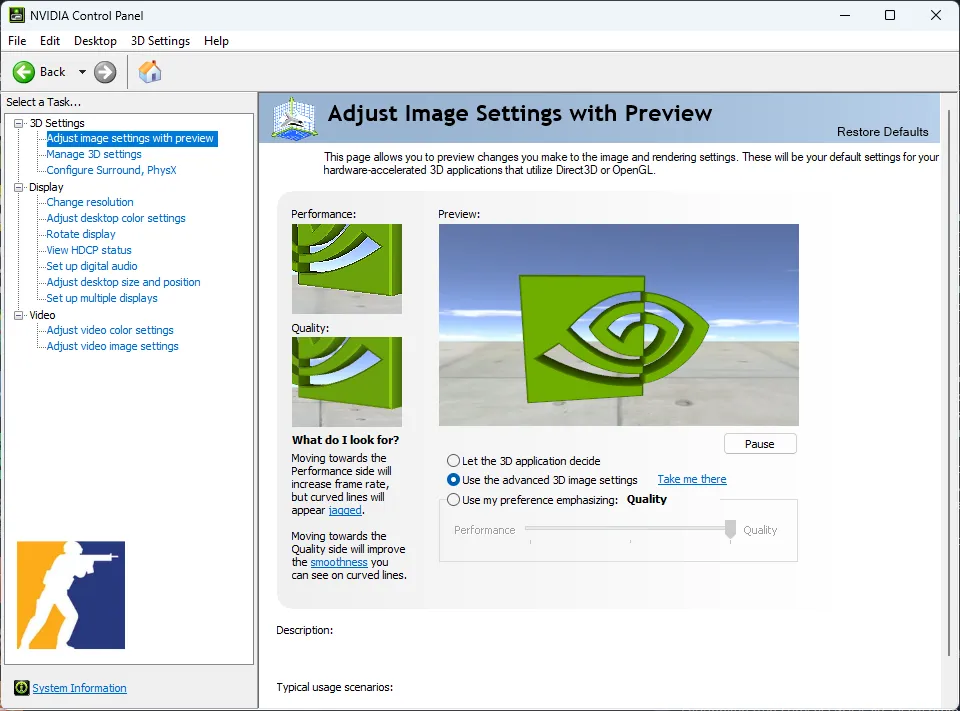
After applying these settings, restart your PC to ensure all changes take effect properly.
NVIDIA Reflex ExplainedLink to this section
NVIDIA Reflex is a game-changing technology available in CS2 that reduces system latency.
How to enable:
- In CS2, go to Settings → Video → Advanced
- Set NVIDIA Reflex Low Latency to Enabled + Boost
Benefits:
- Reduces click-to-display latency by up to 30ms
- Makes flicks and reactions feel more responsive
- Works best with high refresh rate monitors (144Hz+)
AMD Radeon Settings OptimizationLink to this section
AMD GPU users have equivalent optimization options through Radeon Software that can dramatically improve CS2 performance.
How to Access Radeon SettingsLink to this section
Make sure you have the latest AMD Radeon drivers installed before proceeding with these optimizations.
- Right-click on your desktop
- Select AMD Radeon Software
- Navigate to Gaming → Counter-Strike 2
- Configure game-specific settings
Optimal AMD Settings for CS2Link to this section
| Setting | Recommended Value | Why |
|---|---|---|
| Radeon Anti-Lag | Enabled | Reduces input latency |
| Radeon Boost | Enabled (if on older GPU) | Dynamic resolution scaling |
| Radeon Image Sharpening | 80% sharpness | Improves clarity without FPS loss |
| Wait for Vertical Refresh | Off | Disables VSync |
| Texture Filtering Quality | Performance | Prioritizes FPS |
| Surface Format Optimization | On | Improves texture streaming |
| Tessellation Mode | Override (8x maximum) | Reduces unnecessary detail |
| GPU Workload | Graphics | Optimal for gaming |
AMD FidelityFX Super Resolution (FSR)Link to this section
AMD's upscaling technology, similar to NVIDIA DLSS:
How to enable:
- In CS2, look for FSR in video settings
- Select Quality, Balanced, or Performance mode
Recommendation: Use Quality mode for best balance of FPS and image quality.
Windows OptimizationLink to this section
Your operating system settings can significantly bottleneck game performance. These Windows tweaks ensure CS2 gets maximum system resources.
Enable Game ModeLink to this section
Windows Game Mode prioritizes game processes over background tasks.
- Press Win + I to open Settings
- Navigate to Gaming → Game Mode
- Toggle Game Mode to On
Set High Performance Power PlanLink to this section
Default power plans may throttle your CPU and GPU to save energy.
- Press Win + R and type
powercfg.cpl - Select High Performance plan
- If not visible, click Show additional plans
For advanced users, create an Ultimate Performance plan:
- Open Command Prompt as Administrator
- Run:
powercfg -duplicatescheme e9a42b02-d5df-448d-aa00-03f14749eb61 - Select the new Ultimate Performance plan in Power Options
Disable Fullscreen OptimizationsLink to this section
- Navigate to your CS2 installation folder (usually
C:\Program Files (x86)\Steam\steamapps\common\Counter-Strike Global Offensive) - Right-click cs2.exe
- Select Properties → Compatibility
- Check Disable fullscreen optimizations
- Check Run this program as administrator
- Click Apply

Disable Background AppsLink to this section
Close unnecessary programs that consume CPU/GPU resources:
Always close:
- Web browsers with many tabs (especially Chrome)
- Discord hardware acceleration (Settings → Advanced → Hardware Acceleration → OFF)
- RGB software (Razer Synapse, Corsair iCUE) - set profiles and close
- Cloud sync services (OneDrive, Dropbox)
- Recording software when not needed (OBS, ShadowPlay)
Task Manager cleanup:
- Press Ctrl + Shift + Esc
- Sort by CPU or Memory usage
- End tasks you don't need while gaming
Optimize Windows Visual EffectsLink to this section
- Press Win + R and type
sysdm.cpl - Go to Advanced → Performance → Settings
- Select Adjust for best performance
- Or manually uncheck all except:
- Smooth edges of screen fonts
- Show thumbnails instead of icons
Disabling visual effects can free up 5-10% CPU usage on older systems.
Launch Options GuideLink to this section
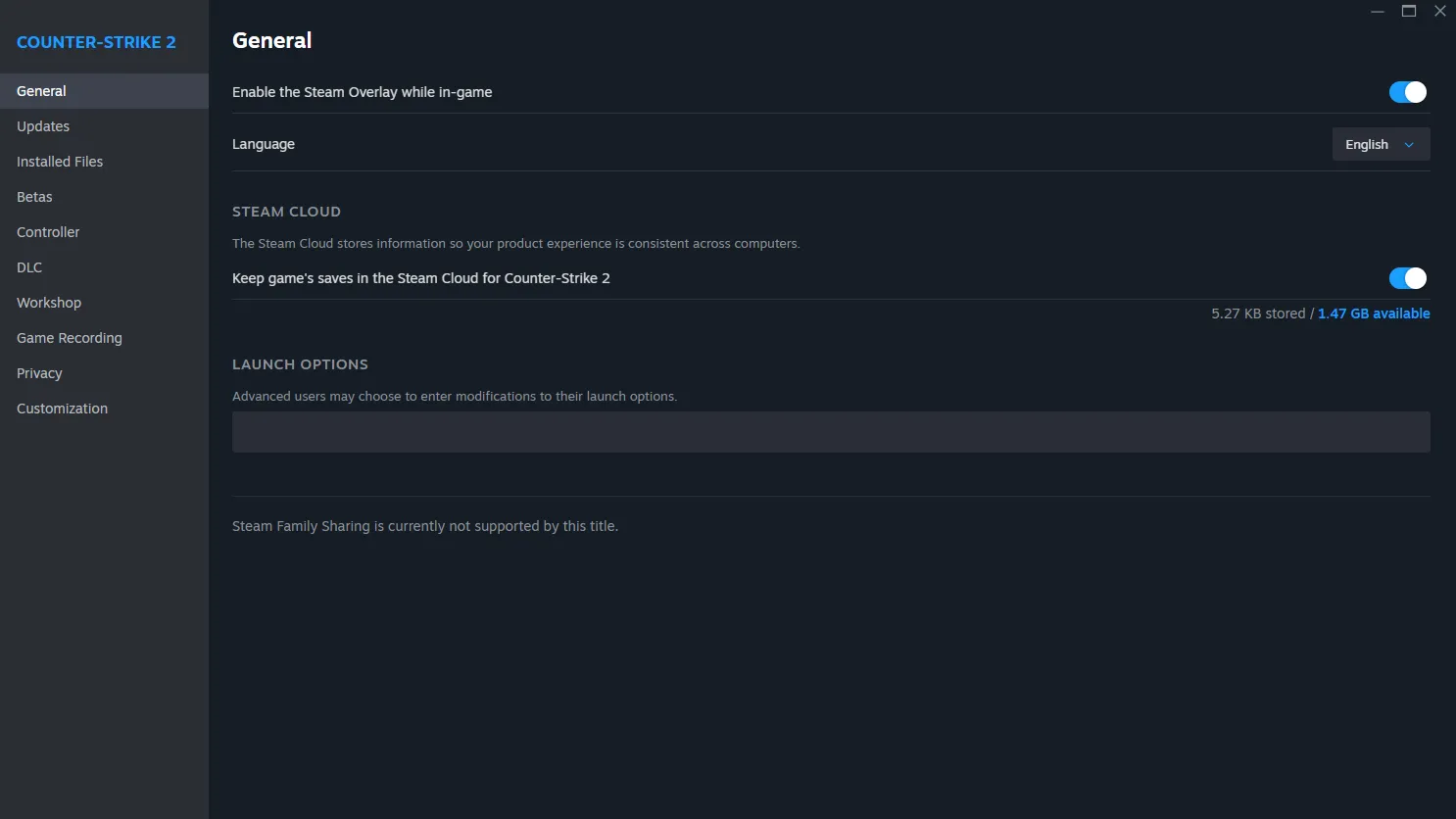
Steam launch options allow you to pass commands to CS2 before it starts. These can improve performance, but incorrect usage may cause crashes. For a comprehensive breakdown of all available launch options, visit our dedicated CS2 Launch Options guide.
How to Set Launch OptionsLink to this section
- Open Steam Library
- Right-click Counter-Strike 2
- Select Properties
- In the General tab, find Launch Options
- Enter your commands (space-separated)
Recommended Launch OptionsLink to this section
-novid – Skips intro videos for faster startup
-nojoy – Disables joystick support (minor performance gain)
-high – Sets CS2 to high priority in Windows
-threads X – Forces the game to use X CPU threads (replace X with your core count)
+fps_max 0 – Uncaps FPS from launch
+cl_forcepreload 1 – Preloads map assets
-freq X – Forces monitor refresh rate (replace X with your Hz: 144, 240, etc.)
+exec autoexec – Executes your autoexec.cfg on launch
Example for a 6-core CPU with 144Hz monitor:
-novid -nojoy -high -threads 6 +fps_max 0 +cl_forcepreload 1 -freq 144 +exec autoexecThe -threads option should match your CPU's physical core count, not thread count. For example, a Ryzen 5 5600X has 6 cores and 12 threads - use -threads 6.
Launch Options to AVOIDLink to this section
These are commonly recommended but can cause issues:
-dx11or-vulkan– Usually auto-detected; forcing may cause crashes-processheap– Outdated, doesn't work in CS2-nod3d9ex– CS2 doesn't use DirectX 9-limitvsconst– Outdated command-softparticlesdefaultoff– Not applicable to CS2
Network and Ping OptimizationLink to this section
Low FPS isn't the only performance issue - high ping and packet loss can be equally devastating. Optimize your network connection for smooth online play.
In-Game Network SettingsLink to this section
Open console and configure these commands:
rate 786432 – Sets maximum bandwidth (adjust based on your internet speed)
cl_updaterate 128 – Updates per second from server
cl_cmdrate 128 – Commands per second sent to server
cl_interp 0 – Minimal interpolation for lowest latency
cl_interp_ratio 1 – Ratio of interpolation (1 = minimal delay)
Find Your Best ServerLink to this section
Use the matchmaking picker to select nearby servers:
- Open console
- Type
mm_dedicated_search_maxping 50(adjust based on your region) - This limits matchmaking to servers with <50ms ping
Recommended maxping by region:
- Same city: 25-35ms
- Same country: 50-70ms
- Neighboring countries: 80-100ms
Router OptimizationLink to this section
Improve network stability at the hardware level:
Enable QoS (Quality of Service):
- Access router admin panel (usually 192.168.1.1)
- Find QoS settings
- Prioritize gaming traffic or CS2 specifically
- Set Steam ports: 27015-27030 (UDP/TCP)
Use Ethernet instead of WiFi:
- Wired connections reduce latency by 10-30ms
- Eliminate WiFi interference and packet loss
- Use Cat6 or Cat7 cables for best results
Restart your router periodically:
- Power cycle every 1-2 weeks
- Clears DNS cache and refreshes connection
Ping matters more than bandwidth for CS2. A stable 50mbps connection beats an unstable 500mbps connection.
Config File TweaksLink to this section
Your autoexec.cfg file stores commands that execute automatically when CS2 launches. This is the best way to maintain consistent settings.
How to Create an Autoexec FileLink to this section
- Navigate to
C:\Program Files (x86)\Steam\steamapps\common\Counter-Strike Global Offensive\game\csgo\cfg\ - Create a new text file named
autoexec.cfg - Add your commands (one per line)
- Save and close
- Add
+exec autoexecto your launch options
Essential Autoexec CommandsLink to this section
// Performance Settings
fps_max 0
mat_queue_mode 2
cl_forcepreload 1
r_drawtracers_firstperson 0
// Network Settings
rate 786432
cl_updaterate 128
cl_cmdrate 128
cl_interp 0
cl_interp_ratio 1
// Display Settings
cl_showfps 1
net_graph 1
// Quality of Life
cl_autowepswitch 0
cl_use_opens_buy_menu 0
bind "mwheelup" "+jump"
bind "mwheeldown" "+jump"
// Host a message
echo "Autoexec loaded successfully!"The echo command at the end confirms your autoexec loaded. Check console on startup to verify.
Advanced Config OrganizationLink to this section
For better organization, split your config into multiple files:
autoexec.cfg– Master file that executes othersperformance.cfg– All performance-related commandsbinds.cfg– Custom key bindingscrosshair.cfg– Crosshair settings (check our Crosshair Import Guide for pro player crosshairs)
Example autoexec.cfg that executes others:
exec performance
exec binds
exec crosshair
echo "All configs loaded!"
Hardware Bottleneck IdentificationLink to this section
Understanding which component limits your performance helps you make informed upgrade decisions and optimization priorities.
How to Identify BottlenecksLink to this section
Monitor CPU and GPU usage while playing:
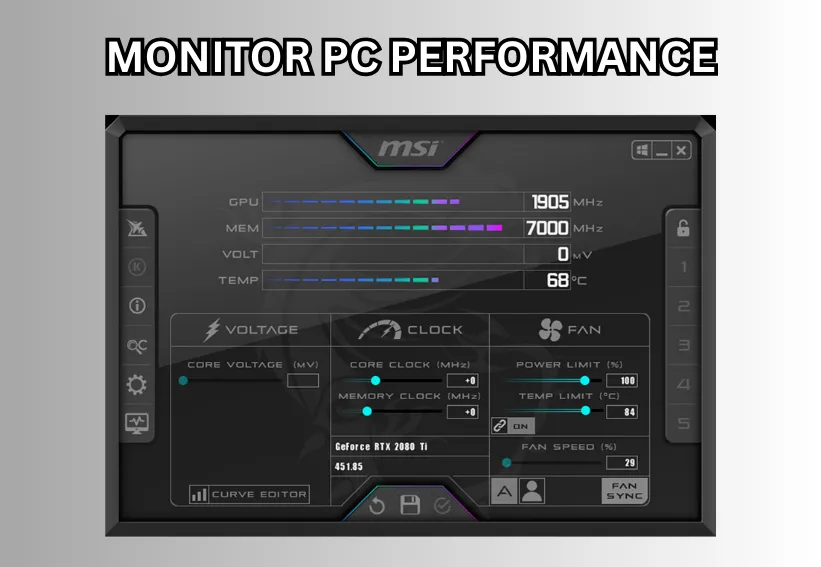
- Download MSI Afterburner (works with all GPU brands) or HWiNFO
- Enable on-screen display for:
- CPU usage (per core)
- GPU usage
- CPU temperature
- GPU temperature
- RAM usage
- Play CS2 for 10-15 minutes
- Analyze the data
Reading the ResultsLink to this section
GPU Bottleneck (most common):
- GPU usage: 95-100%
- CPU usage: 40-70%
- Solution: Lower graphics settings, enable DLSS/FSR, upgrade GPU
CPU Bottleneck:
- CPU usage: 80-100% (one or more cores maxed)
- GPU usage: 50-80%
- Solution: Lower player/bot count, close background apps, upgrade CPU
RAM Bottleneck:
- RAM usage: 90-100% of available memory
- Frequent stuttering and freezing
- Solution: Close background apps, upgrade to 16GB+ RAM
Thermal Throttling:
- High temperatures (CPU >80°C, GPU >85°C)
- Performance drops after 15-30 minutes
- Solution: Improve cooling, clean dust, reapply thermal paste
Quick Bottleneck TestLink to this section
Run this console command to stress test: bot_add_ct; bot_add_ct; bot_add_ct; bot_add_t; bot_add_t; bot_add_t (add 20+ bots)
- If FPS drops significantly with many bots: CPU bottleneck
- If FPS stays similar: GPU bottleneck or well-balanced
CS2 is more CPU-intensive than CS
. Even high-end GPUs can be bottlenecked by older CPUs.Low-End PC Specific TipsLink to this section
Running CS2 on a budget system or laptop? These aggressive optimizations sacrifice visual quality for maximum playability.
Minimum Specifications to Run CS2Link to this section
- CPU: Intel Core i5-2400 or AMD FX-8320
- RAM: 8GB DDR3
- GPU: NVIDIA GTX 960 or AMD R9 280
- Storage: 50GB free space (SSD strongly recommended)
Ultra Low Graphics SettingsLink to this section
Configure every setting to its absolute minimum:
- Resolution: 1024x768 or 1280x960 (stretched)
- Display Mode: Fullscreen
- All Advanced Settings: Low or Disabled
- MSAA: None
- NVIDIA DLSS/FSR: Performance mode if available
Low-End Console CommandsLink to this section
Maximize FPS with these aggressive commands:
r_drawparticles 0 – Removes particle effects (smoke, fire)
r_shadows 0 – Completely disables shadows
cl_disable_ragdolls 1 – No death animations
muzzleflash_light 0 – Disables weapon muzzle flashes
r_3dsky 0 – Removes 3D skybox
mat_disable_bloom 1 – No bloom effects
Reduce Resolution for Major FPS BoostLink to this section
Lower resolution = massive FPS increase:
- 1920x1080 → 1280x720: ~40-50% FPS boost
- 1920x1080 → 1024x768: ~60-80% FPS boost
Many pro players use 1280x960 stretched even on high-end PCs for larger enemy models.
Background Process EliminationLink to this section
On low-end systems, every bit of CPU/RAM matters:
- Disable Windows Search:
services.msc→ Windows Search → Disabled - Disable Superfetch/SysMain
- End all non-essential tasks in Task Manager
- Set CS2 process priority to High in Task Manager
Consider a RAM Upgrade FirstLink to this section
If you have 8GB RAM or less, upgrading to 16GB provides the best performance-per-dollar improvement for CS2.
SSD vs HDD makes a huge difference in CS2. If you're on a hard drive, upgrading to even a budget SSD will eliminate stuttering.
High-End PC MaximizationLink to this section
Got a beastly rig? These tweaks ensure you're getting every last frame and minimizing latency for competitive advantage.
Target: 400+ FPS ConsistentlyLink to this section
High-end PCs should maintain 300-500+ FPS even during intense firefights. Here's how to achieve it:
Hardware Sweet Spot (2024-2026):
- CPU: Intel i7-13700K / AMD Ryzen 7 7800X3D or better
- GPU: NVIDIA RTX 4070 or AMD RX 7800 XT or better
- RAM: 32GB DDR5-6000 (or DDR4-3600)
- Monitor: 240Hz+ (360Hz ideal)
Balanced High-FPS SettingsLink to this section
You can maintain visual quality while achieving 300+ FPS:
| Setting | Recommended |
|---|---|
| Resolution | 1920x1080 (native) |
| Shadow Quality | Medium |
| Texture Detail | High |
| Anti-Aliasing | DLSS Quality or 2x MSAA |
| Particle Detail | High |
| Ambient Occlusion | Medium |
CPU Optimization for High-EndLink to this section
Enable XMP/DOCP in BIOS:
- Restart PC and enter BIOS (usually Del or F2)
- Find XMP/DOCP/EXPO profile
- Enable it to run RAM at rated speed
- Save and exit
Disable CPU Power Saving:
- In BIOS, disable C-States and SpeedStep
- Keeps CPU at max frequency for lowest latency
Overclock if comfortable:
- Modern CPUs can gain 10-20% FPS with moderate OC
- Use Intel XTU or AMD Ryzen Master
- Monitor temperatures carefully
GPU Optimization for High-EndLink to this section
NVIDIA RTX 40-Series Specific:
- Enable DLSS 3 Frame Generation if you have RTX 4070+
- Can double your FPS (200 → 400+) with minimal latency increase
- Only works on RTX 40-series GPUs
AMD RX 7000-Series Specific:
- Enable Radeon Anti-Lag+ in driver settings
- Use FSR 2 in Quality mode
- Enable Smart Access Memory in BIOS if on AMD CPU
Latency Optimization (eSports)Link to this section
For competitive players, latency matters more than peak FPS:
- Cap FPS to your monitor's max refresh × 2
- 240Hz monitor:
fps_max 480 - Prevents unnecessary GPU load and stabilizes frame times
- 240Hz monitor:
- Enable NVIDIA Reflex + Boost or AMD Anti-Lag
- Use wired peripherals only (USB 3.0+)
- Disable in-game VSync and monitor GSync/FreeSync
Pro players often cap FPS slightly above their monitor refresh rate for optimal frame pacing and minimal latency.
Troubleshooting Common IssuesLink to this section
Even after optimization, you might encounter specific performance problems. Here are solutions to the most common CS2 issues.
Stuttering and MicrofreezesLink to this section
Symptoms: Game freezes for 0.1-1 second intermittently
Solutions:
- Enable
cl_forcepreload 1in console - Install CS2 on an SSD (crucial fix)
- Update GPU drivers to latest version
- Disable in-game overlay (Steam, Discord, GeForce Experience)
- Close Chrome/Edge (notorious for causing stutters)
- Increase virtual memory (pagefile) to 16GB
Low FPS Only on Certain MapsLink to this section
Symptoms: Good FPS on Mirage, terrible on Ancient/Nuke
Solutions:
- Some maps are more demanding (Ancient, Nuke, Overpass)
- Lower Shadow Quality specifically
- Disable Ambient Occlusion
- Verify game files integrity in Steam
FPS Drops After 30-60 MinutesLink to this section
Symptoms: Starts strong, gradually degrades
Solutions:
- Thermal throttling - clean PC dust, improve airflow
- Memory leak - restart game between sessions
- Check temperatures with HWiNFO (CPU <80°C, GPU <85°C)
- Update motherboard BIOS
- Disable Windows Game DVR
Input Lag / DelayLink to this section
Symptoms: Actions feel delayed despite high FPS
Solutions:
- Disable VSync in-game and GPU control panel
- Enable NVIDIA Reflex or AMD Anti-Lag
- Set
max_prerendered_frames 1in NVIDIA Control Panel - Use fullscreen mode, not borderless windowed
- Cap FPS to monitor refresh × 2 (e.g., 480 for 240Hz)
- Check if monitor is running at max refresh rate
"Video Card Too Old" or DirectX ErrorsLink to this section
Symptoms: Game won't launch or crashes
Solutions:
- Update GPU drivers from manufacturer website
- Install latest DirectX runtime from Microsoft
- Verify GPU meets minimum requirements
- Run
dxdiagto check DirectX version
VAC Authentication ErrorLink to this section
Symptoms: Can't join official servers
Solutions:
- Restart Steam as Administrator
- Verify game files
- Disable any custom launch options temporarily
- Check Windows Firewall isn't blocking CS2
Never use FPS unlock tools or game file modifications - they can trigger VAC bans. All optimizations in this guide are safe and VAC-compliant.
Monitoring Your PerformanceLink to this section
Track your improvements and ensure your optimizations are working with proper monitoring tools.
In-Game Performance DisplayLink to this section
Net Graph - The most comprehensive in-game tool:
net_graph 1 – Shows FPS, ping, tick rate, packet loss
net_graph 2 – Adds server performance data
net_graph 3 – Minimal display (just FPS and ping)
Position the net graph for readability:
net_graphpos 2– Right side of screennet_graphheight 64– Moves it down from top
External Monitoring ToolsLink to this section
MSI Afterburner + RivaTuner (Free)
- Shows FPS, frame times, CPU/GPU usage, temperatures
- Customizable on-screen display
- Works with all GPU brands (NVIDIA, AMD, Intel)
HWiNFO64 (Free)
- Detailed system monitoring
- Can overlay stats with RivaTuner
- Best for diagnosing thermal issues
CapFrameX (Free)
- Advanced frame time analysis
- Identifies stuttering and frame pacing issues
- Great for benchmarking before/after optimizations
Key Metrics to MonitorLink to this section
| Metric | Target | Why It Matters |
|---|---|---|
| Average FPS | 144+ (240+ ideal) | Overall smoothness |
| 1% Low FPS | >100 | Worst-case performance |
| Frame Time | <6.9ms (144Hz) | Consistency (lower = better) |
| CPU Usage | 50-80% | Room for background tasks |
| GPU Usage | 90-100% | GPU fully utilized |
| CPU Temp | <75°C | Prevents throttling |
| GPU Temp | <80°C | Prevents throttling |
| RAM Usage | <12GB | Enough headroom |
Benchmark Your ProgressLink to this section
Create a standardized test to measure improvement:
- Run
map de_mirage - Execute
bot_add_ct; bot_add_ct; bot_add_ct; bot_add_t; bot_add_t; bot_add_t(add 10 bots) - Run to mid and observe
- Note average FPS, 1% lows, and frame times
- Repeat after each optimization
Document your FPS before and after each major change. This helps identify which optimizations work best for YOUR specific system.
Closing NotesLink to this section
By following this comprehensive guide, you should see significant improvements in your Counter-Strike 2 performance. Remember that optimization is an iterative process - make one change at a time, test it, and keep what works for your specific hardware configuration.
Quick Recap of Biggest FPS Gains:
- Lower Shadow Quality (40-60% FPS increase)
- Disable Anti-Aliasing or use DLSS (30-100% increase)
- Update GPU drivers (10-30% increase)
- Enable NVIDIA Reflex / AMD Anti-Lag (lower latency)
- Windows Game Mode + High Performance Power Plan (10-20% increase)
- Install on SSD (eliminates stuttering)
- Close background applications (15-25% increase)
For Competitive Players:
- Prioritize consistent FPS over peak FPS
- Aim for 300+ FPS minimum even during smokes and firefights
- Lower latency is more important than higher FPS once you're above 240
- Test different settings in offline mode before competitive matches
Regular Maintenance:
- Update GPU drivers monthly
- Clean PC dust every 3-6 months
- Verify game files after major updates
- Review and update autoexec.cfg with new patches
Congratulations! You now have professional-level CS2 performance optimization knowledge. Enjoy your higher FPS and competitive advantage!
Still having issues? Check the CS2 Steam Community or explore our other guides for additional tips. For more CS2 optimization resources, check our Console Commands database or Launch Options reference. The most impactful hardware upgrades are typically: SSD → 16GB+ RAM → better GPU → better CPU (in that order for most players).